Official Handbook · Getting Started

Shadowrocket Setup Guide

Add Details → Choose Routing → Connect and Verify

For iPhone and iPad. First establish a connection you can verify, then adjust everyday settings one at a time. Protocol details and the full rule set are covered in later sections.

App Store Availability
STEP 01 / INPUT

Add Server: Add or Import

A subscription URL and individual server details are two different ways to add connection information. Choose the one you already have; there’s no need to add both.

Identify the Details You Have

Open Shadowrocket and go to Home. SERVER near the bottom lists available servers; if the list is empty, start with Add Server. A full subscription URL from your provider usually retrieves a list of entries. Separate protocol, address, port, and authentication details are for manual entry. Don’t judge the type by the URL’s length, and don’t enter a subscription URL as the server Host.

Keep your original details somewhere secure and refer to them as you enter each field. A subscription URL, Password, UUID, or other credentials may grant access. Don’t post them publicly or share unredacted screenshots. If the details don’t specify the protocol or required fields, check with your provider rather than guessing based on another guide.

Option 1: Enter Existing Server Details

  1. On Home, tap Add Server. Open Type first and choose the protocol that matches your details, such as Shadowsocks, VMess, VLESS, or Trojan. Type determines which fields appear, so select it before entering the rest.
  2. Enter the Host and Port from your details. Host should be a server domain name or address, without a webpage path. Use the specified port; don’t substitute a common web port.
  3. Enter the authentication and transport settings required by the selected protocol. For Shadowsocks, check Password and Method. Other protocols may show fields such as UUID, TLS, Server Name, or transport settings. Fill in only the fields that apply; don’t mix settings from different protocols.
  4. Check for leading or trailing spaces, line breaks, or accidentally copied punctuation, then save and return to Home. Confirm the new entry appears under SERVER and select it for testing.

Scan QR Code at the bottom of Add Server can read a QR code containing details you already have; check Type and the fields after scanning. Import from Cloud JSON is for a specific JSON import format, not a general-purpose way to import any URL. You only need to complete one valid method.

Option 2: Import an Existing Subscription

If you have a subscription URL, choose Subscribe under Type in Add Server, paste the full URL into URL, and add a label you’ll recognize. Save, return to Home, and wait for the subscription to load. Use the subscription’s update option if needed. When retrieval succeeds, its server entries should appear; select one to test. Saving a subscription entry does not confirm that its contents were successfully retrieved.

If no entries appear, first check that the URL is complete and the subscription is still valid. Don’t rebuild all your settings right away. A subscription URL and a configuration file used for rule-based routing are different things. After importing servers, whether requests follow rules depends on Global Routing and the active configuration. See the glossary for related terms.

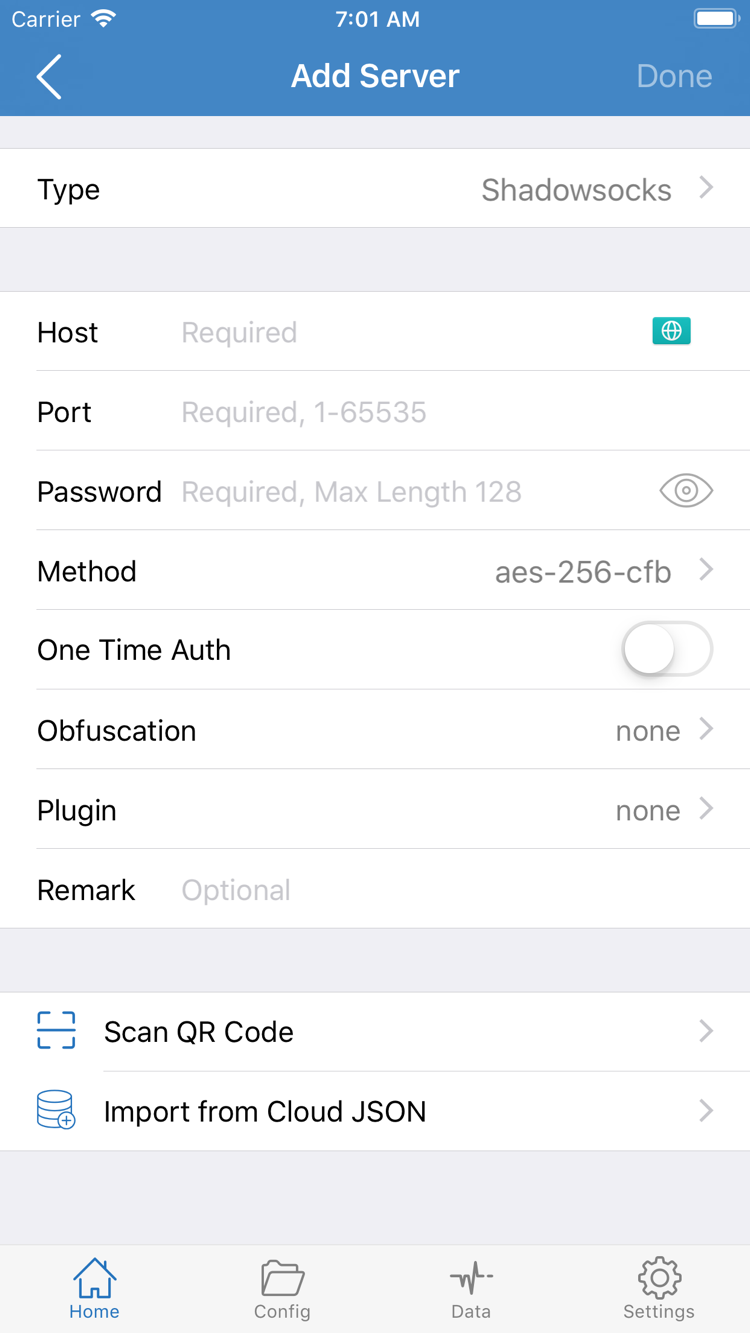
Official Shadowrocket Add Server screen showing Type, Host, Port, Password, Method, and import options at the bottom
Official App Store screenshot: Add Server. Available fields vary by Type; refer to the protocol you selected and the current app interface.
STEP 02 / ROUTING

Global Routing: Choose How Requests Are Handled

The server determines where proxied requests go; Global Routing determines how requests are handled. Check both separately.

Return to Home and tap Global Routing to see the current selection. When getting started, don’t assume every request will use the selected server just because you’ve selected one. First understand Config, Proxy, and Direct, then choose the mode that fits what you’re testing.

What Each Mode Does

  • Config: Matches requests against rules in the active configuration. Some requests may use PROXY, others DIRECT, or another policy. This suits everyday use when you have rules you understand, but the outcome depends on the configuration and rule order.
  • Proxy: Handles requests the client can process using the proxy mode. This is useful for checking whether the selected server can support real-world access during initial troubleshooting. It doesn’t bypass every system restriction or guarantee that a destination service is available.
  • Direct: Handles requests as direct connections and can be used to compare results with Proxy. Selecting a server and then choosing Direct does not test whether that server is working.

If you’re only checking a newly added server, start by selecting Proxy and note your choice before continuing. If you already have a trusted configuration and understand what it does, you can choose Config instead. When testing is done, switch back to the mode you use day to day so you don’t leave a temporary troubleshooting setting in place.

Check the Active Configuration Before Choosing Config

For rule-based routing, open Config at the bottom and confirm that the configuration you want is selected. The configuration editor has sections such as General, Rule, Hosts, URL Rewrite, and HTTPS Decryption. Rule and Add Rule are for managing rules. When getting started, you don’t need to edit every section or enable HTTPS Decryption just to connect for the first time.

For example, DOMAIN-SUFFIX,example.com,PROXY matches by domain suffix and applies the PROXY policy. This is a rule syntax example, not a complete configuration to add as-is. Rules are typically matched in order, so later entries may never take effect. For how FINAL and DIRECT work together, see the Global Routing chapter in the full handbook. Don’t change server details and rules at the same time during this test.

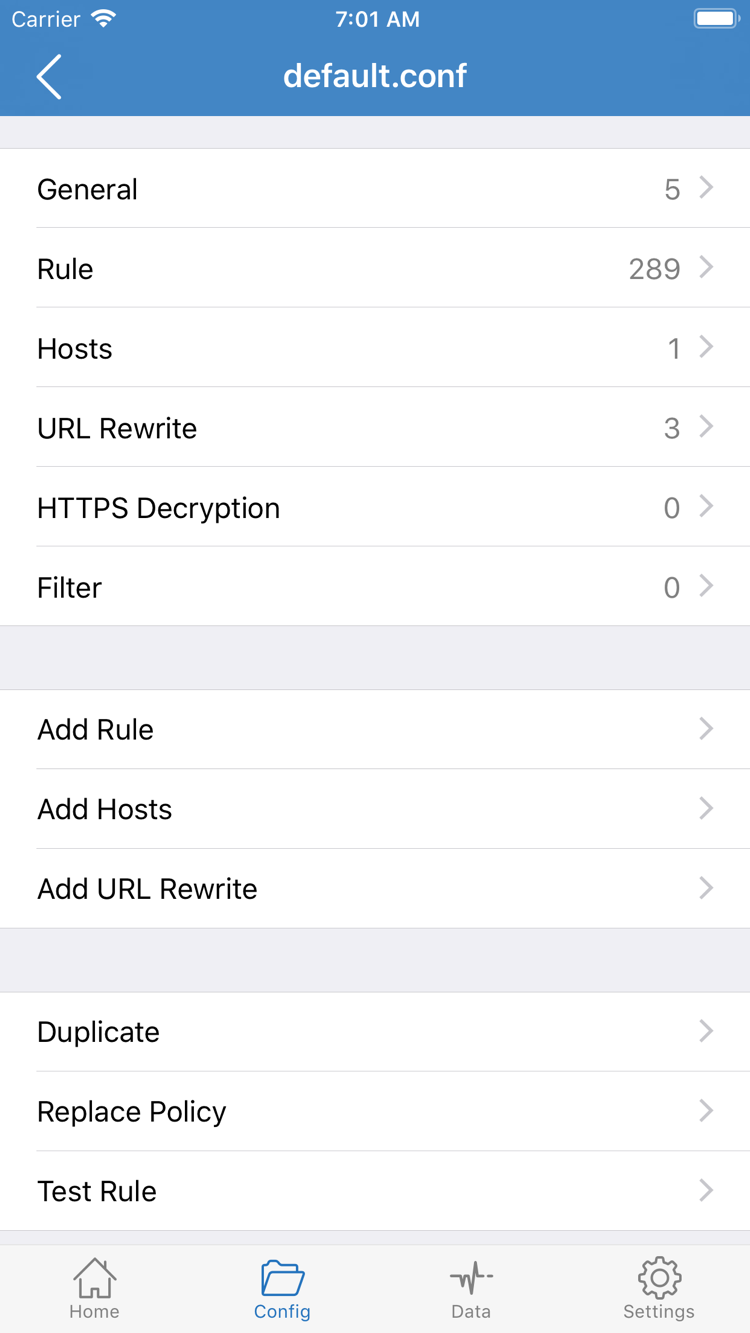
Official Shadowrocket configuration editor showing General, Rule, Hosts, URL Rewrite, HTTPS Decryption, and Add Rule
Official App Store screenshot: Config editor. Use this screen to manage configuration contents; choose the Global Routing mode from Home.
STEP 03 / CONNECT

Home: Turn On the Connection

Check the server and routing mode first, then respond to the system VPN configuration prompt. System authorization and server authentication are separate steps.

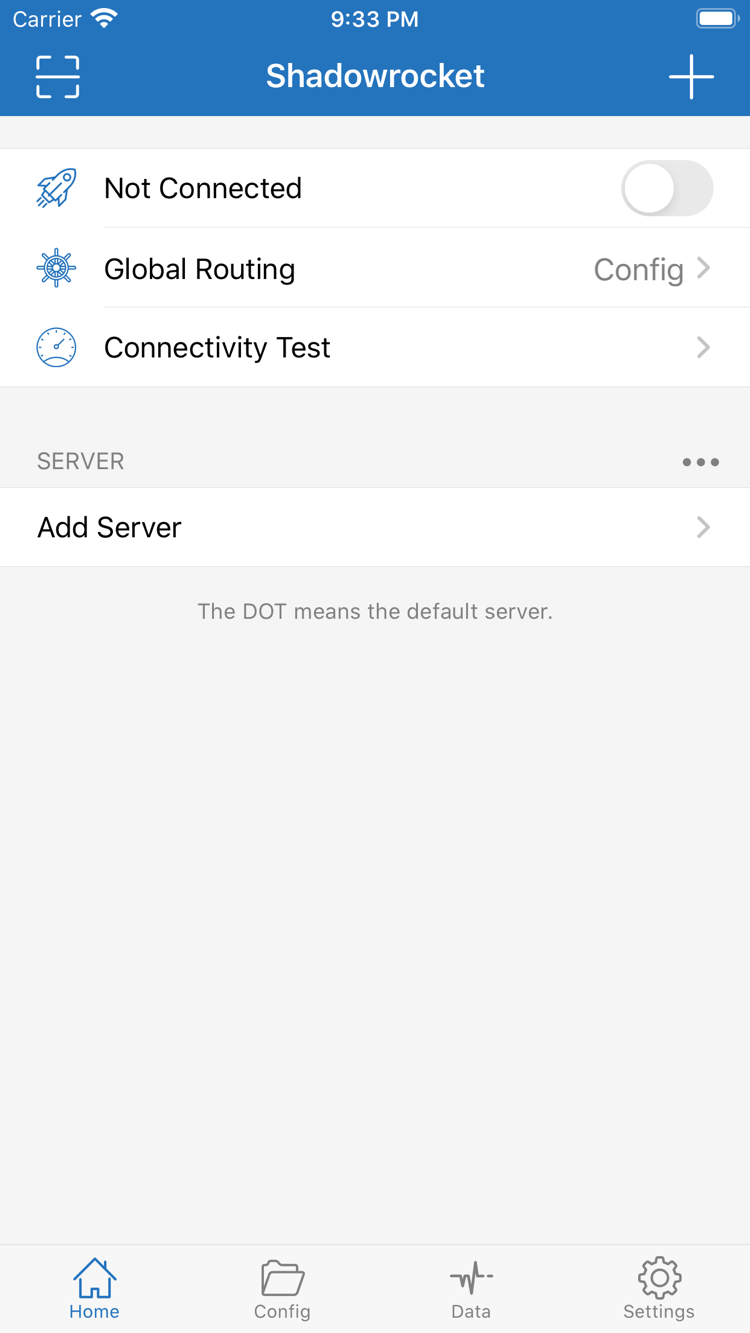
Return to Home and recheck the selected entry under SERVER and the Global Routing mode. Make sure neither changed while importing or navigating, then turn on the connection switch at the top. Not Connected may appear before you connect. After turning on the switch, check whether the status changes and whether the switch stays on.

The first time you connect, your iPhone or iPad may ask to add a VPN configuration. This gives the client permission to handle connections through the system network extension. It isn’t a request to buy the app again or to verify your Password with your provider. Confirm the prompt is from Shadowrocket, allow it, and complete any device passcode or other verification requested by the system. Enter verification details only in the system prompt, never in Add Server.

After approval, return to Shadowrocket and check the connection status. If you previously denied the prompt, turn on the switch again and watch for another authorization request. If it still won’t connect, check the VPN configuration status in Step 5. Avoid rapidly toggling the switch or editing server details while authorization is in progress; either can make the cause harder to identify.

A switch that stays on means the client’s network handling process has started; it doesn’t prove that the remote server, DNS, and destination websites are all working. Leave On Demand unchanged for now. Keep the connection manual and continue to the next step. The layout may differ on iPad, but check the server, Global Routing, and connection switch on Home in that order.

Official Shadowrocket Home screen showing the Not Connected switch at the top, followed by Global Routing, Connectivity Test, and SERVER
Official App Store screenshot: Home. The switch at the top controls the connection; check Global Routing and server selection separately. The screenshot does not show your live connection status.
STEP 04 / CHECK

Connectivity Test: Verify Real-World Access

Check whether the server test succeeds, the switch stays on, and webpage requests complete as separate steps. This helps identify which part is working.

Test the Selected Entry

On Home, run Connectivity Test, wait for the result, and note the test method and current network. The reading reflects the selected test method; it isn’t a definitive ranking of connection quality. A single timeout doesn’t prove that a server is permanently unavailable.

Then Test a Real Request

Open a browser and visit a clearly identified webpage you’re authorized to access. Refresh and wait for new content to load. Don’t rely on a page that was already loaded or a cached image, and don’t assume one failed website means all connections are failing.

If the test returns a result but webpages won’t load, check the current Global Routing mode first. With Config, the page may match DIRECT or another rule instead of using the server you just tested. After noting the original setting, temporarily switch to Proxy and retry the same address. If Proxy works but Config doesn’t, focus on the configuration and rules rather than re-entering your authentication details.

You can also open Data and check whether the traffic reading changes when you make a new request. This can indicate request activity, but its scope may differ from the usage reported by your provider. An increase alone doesn’t prove that the requested content was delivered. The system VPN indicator is another clue about connection status, not a substitute for testing actual access.

To establish a baseline for your local network, note the current mode, then switch to Direct or turn off the connection and test the same address. If Direct also fails, check whether the Wi-Fi network requires a sign-in page, whether the network is working, or whether the destination service is having problems. Restore your original mode afterward so you don’t leave the test setting active.

STEP 05 / DIAGNOSE

Settings: Troubleshoot by Failure Stage

Go back to the earliest step that didn’t complete. Change one condition at a time, repeat the same test, and keep a record you can revert to.

Subscription Saved, but No Server Entries Appear

Check whether the subscription URL was truncated or contains an accidentally copied space, and whether your provider requires a newly generated link. Saving a Subscribe entry only stores the address in the client. If the remote request fails or returns unexpected content, there may still be no usable entries under SERVER. Check that your current network can reach the subscription service, then confirm your subscription is still valid. Don’t share a full URL containing credentials in a public support request.

Server Appears, but the Test Fails

For a manually added entry, first check Type, Host, Port, and authentication fields, then confirm TLS and transport settings match your original details. For a subscription entry, try updating it and confirm the selected server is still valid. In Settings, check Test Method to see whether the current test depends on a real request; readings from different methods aren’t directly comparable. If results change on Wi-Fi versus Cellular, note the difference as a clue about the network rather than changing all the server settings at once.

Switch Turns On, but Webpages Won’t Load

First compare Proxy and Config as described in Step 4. If only Config fails, check the active configuration and rules. If both modes fail but the server test responds, check DNS resolution, the destination address, TLS, and transport settings. An incorrect device date or time can also affect secure connections. Changing DNS repeatedly isn’t a fix; save the original value and change one setting at a time, testing the same destination each time. For details, see the FAQ categories on rule-based routing and troubleshooting.

Connection Restarts After You Turn It Off, or Changes When You Switch Networks

Open Settings and check On Demand. It can trigger a connection when configured conditions are met, so it’s possible to turn the connection off manually and have it start again later. For initial troubleshooting, note the current On Demand settings, temporarily disable the relevant triggers, and retest with the manual switch. Once the basic connection is stable, restore On Demand and check its conditions one at a time. An automatic reconnect doesn’t mean your server settings failed to save.

Keep Troubleshooting Notes Minimal

Diagnostics in Settings can help with further investigation. Proxy, TCP, and UDP settings affect more detailed network behavior; you don’t need to change them to establish a first connection. If you need help, note which step failed, the current routing mode, whether you’re on Wi-Fi or Cellular, the test method, and the exact error message. Before sharing diagnostics, remove subscription URLs, Passwords, UUIDs, and any other identifying credentials. Don’t post your full configuration.

Reinstalling the app shouldn’t be your first step. It may erase your existing configuration and useful troubleshooting clues without changing the status of the remote service. Save your configuration and original server details, then troubleshoot by failure stage. For a systematic guide to subscriptions, rule order, and common settings, continue to the complete Shadowrocket handbook.
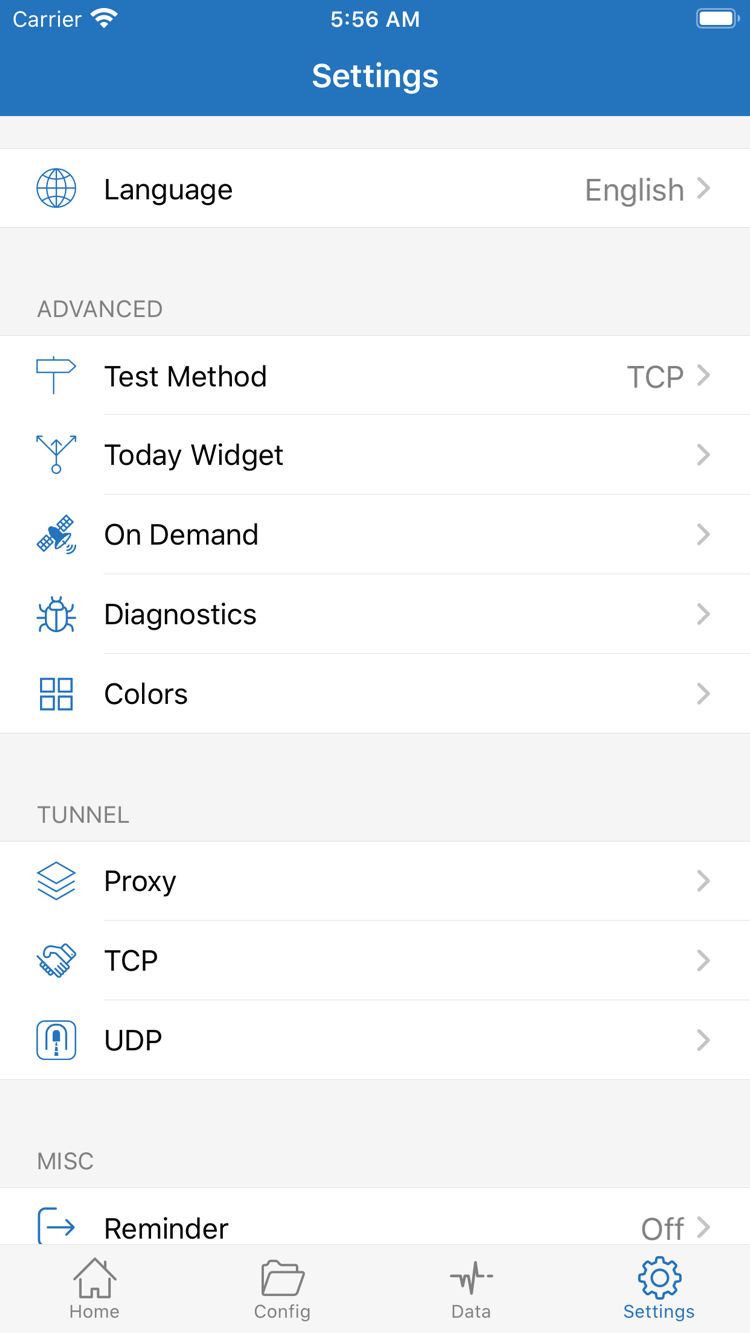
Official Shadowrocket Settings screen showing Language, Test Method, Today Widget, On Demand, Diagnostics, Proxy, TCP, and UDP
Official App Store screenshot: Settings. Start by checking the effects of Test Method and On Demand, then investigate other settings based on the issue.

After Setup: Keep a Working Configuration

Once the connection works, note the selected server, Global Routing mode, and active configuration. Restore any temporary test settings to their intended state, then configure everyday rules or On Demand one item at a time. Keep server subscriptions and configuration files separate. After updating either one, test a real request again.

If something goes wrong next time, check whether the import succeeded, whether the switch stays on, and whether the test matches real-world access. This is more useful than resetting every setting at once.