APP STORE · OFFICIAL DOWNLOAD GUIDE
Official Shadowrocket Download
- Developer: Shadow Launch Technology Limited
- App ID: 932747118
- $2.99 one-time purchase
- For iPhone and iPad
Paid app, one-time purchase, available only on the App Store. The US reference price is $2.99; check the store page for the current price. Buying the app ≠ buying a connection plan.
BEFORE YOU BUY / ACCOUNT
Store and account region
First make sure the product is available to your account. Then check payment and device compatibility.
This app isn’t available in the mainland China storefront. The country or region on your Apple Account determines which App Store you see. Changing your device language, system region, or current network doesn’t change your store account’s country or region. The button on this page opens the US product page, but the storefront path in the link won’t change your account or override the store’s purchase eligibility checks.
On your device, first check which account is used for Media & Purchases. It may differ from the account shown at the top of Settings for other system services. For App Store purchases, verify the account actually used for purchases. If the product page says it isn’t available in your country or region, note the message and check your account settings. This isn’t a Shadowrocket connection issue.
Your balance, active subscriptions, Family Sharing status, and payment details may affect a region change. Whether and when you can change regions depends on the information shown in your Apple Account settings. This page explains where to find the option but can’t guarantee that a change will be available. If you have previous purchases, first verify the original purchase account and its records before considering a region change.
Being able to open the store webpage doesn’t necessarily mean your device is eligible to make a purchase. Before proceeding, check the price button, compatibility details, and account status in the App Store. If you see a payment prompt, resolve the payment or account issue in the store first. Before installing the app, there’s no need to change Global Routing, DNS, or server settings.
THREE DETAILS TO MATCH / VERIFY
Shadowrocket App Verification
Use the name to find the app, then verify it by developer, official icon, and app ID.
Search results may include apps with the same or a similar name. Don’t identify the app by a nickname or its position in search results alone. Open the product page and check all three details below. Verify them before paying. If any detail doesn’t match, return to the App Store product page linked here and check again.
- Developer
- Shadow Launch Technology Limited
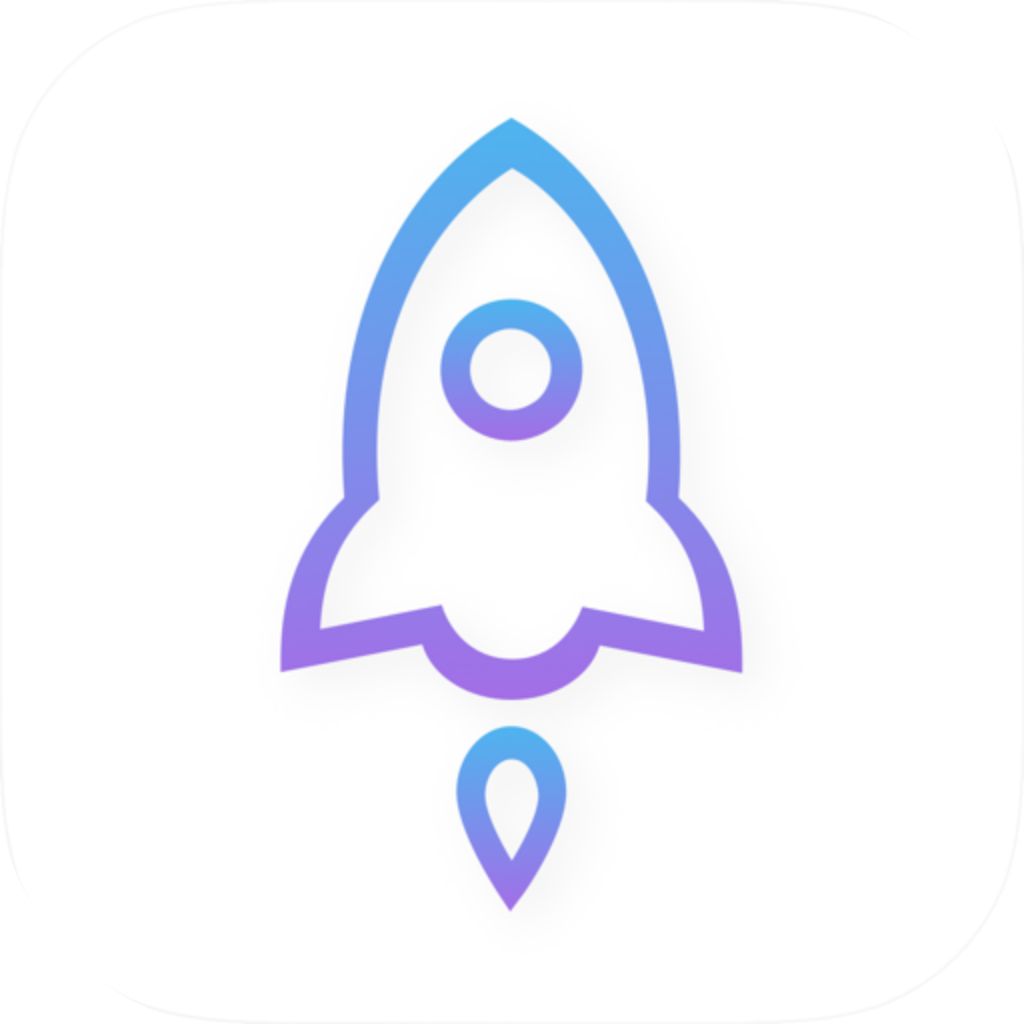
- Official app icon
-
Compare the white background and blue-purple outlined rocket with the official icon on this page.
- App ID
932747118
The product page URL should end inid932747118.
Screenshots help identify the screens; they don’t verify the store listing
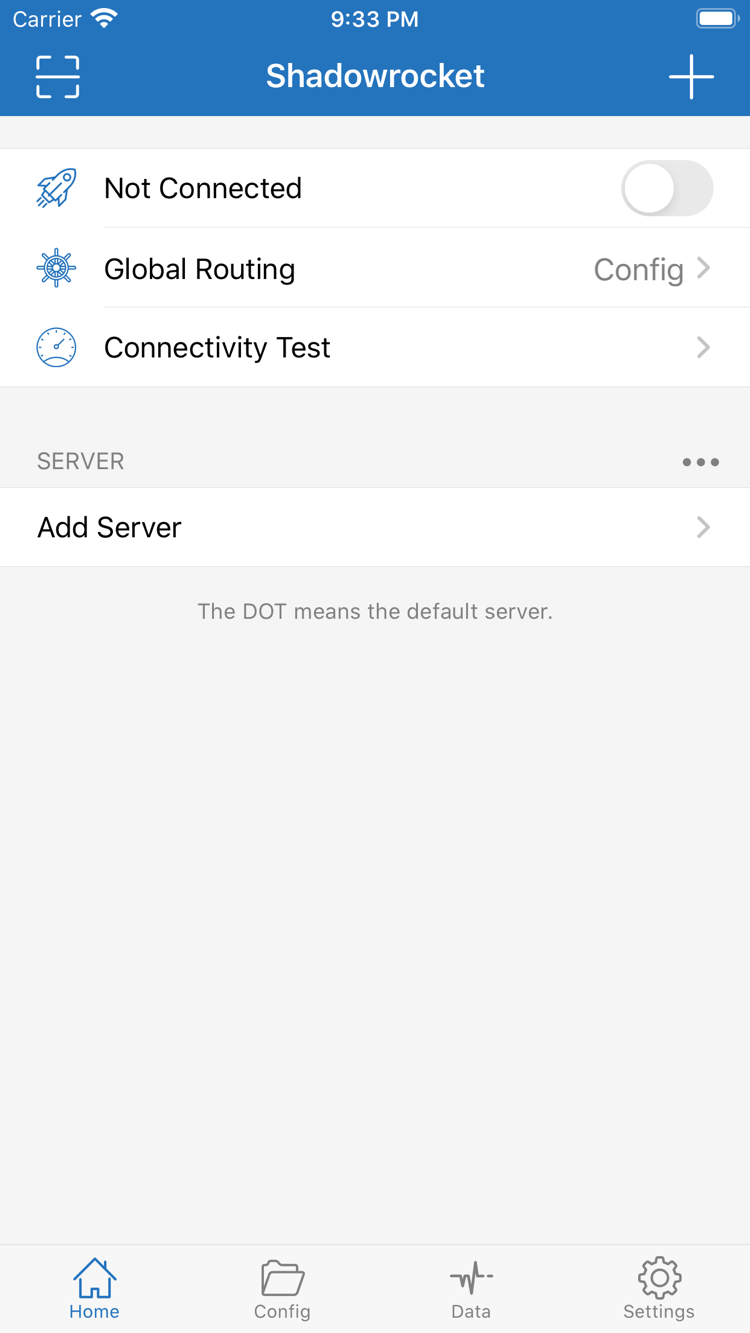
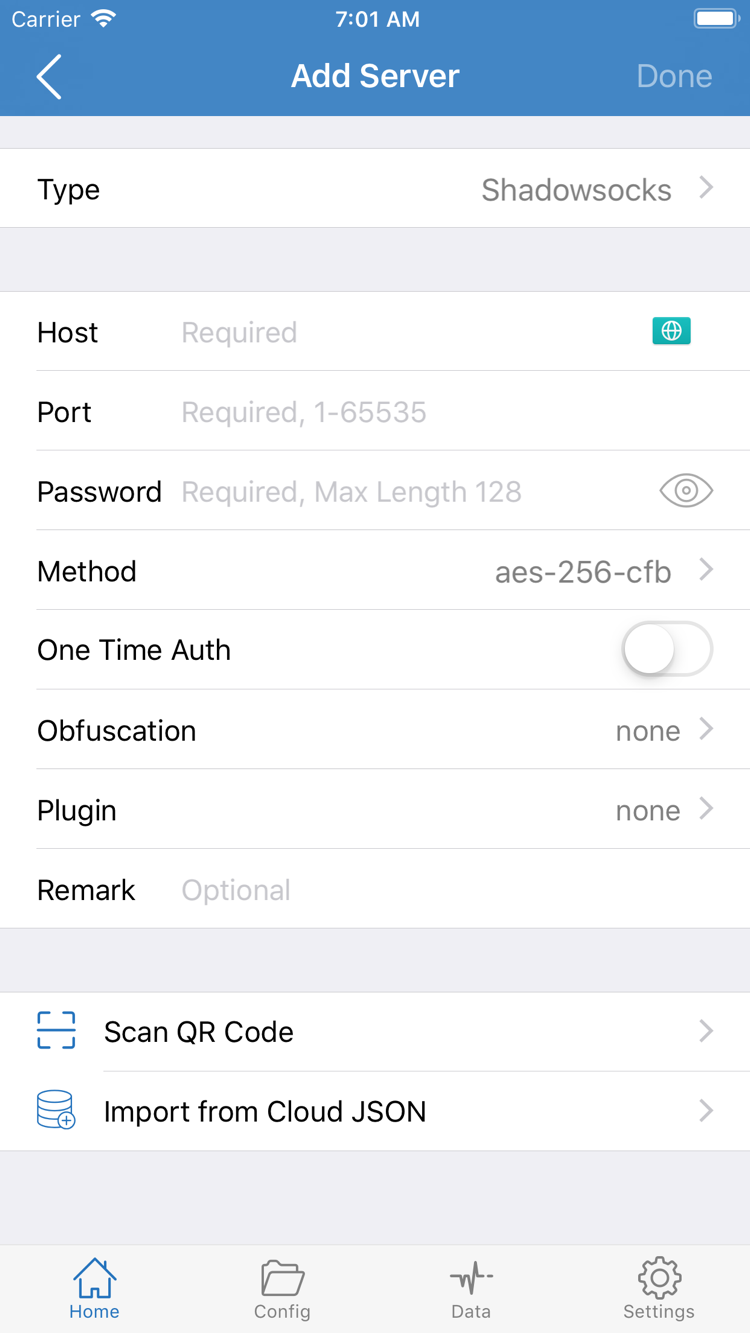
The two images show official App Store screenshots. Home shows Not Connected, Global Routing, Connectivity Test, and the SERVER group. Add Server shows fields for entering server details manually. These images help identify the screens in the app, but layouts may change with device or app updates. Verify the purchase listing by checking the developer, icon, and app ID.
The server details shown in screenshots aren’t connection credentials you can use. After installation, import your own subscription or enter your own server details. Seeing Not Connected when you first open the app, or an empty SERVER list, doesn’t mean the purchase failed. Complete your configuration instead of buying the app again.
This is the download and purchase chapter of the Shadowrocket Official Handbook. Check the store price, compatibility, and purchase status again before paying.
DEVICE GUIDE / IPHONE
iPhone Installation and first launch
Complete your App Store purchase before opening the app
Open the Shadowrocket product page in the App Store on your iPhone. Verify the three official listing details, check the price, and follow the system prompts to authorize the purchase. If you’ve already purchased the app, the store will usually offer a redownload option. If a price still appears, check your store account and purchase history first. Check the compatibility section for your device before paying. System requirements are listed on the App Store page.
After purchasing, wait for the App Store download to finish, then open the app from your Home Screen or the store page. If the icon stays in a waiting state, check available storage, your local network, and whether the store is asking you to resolve an account prompt. Shadowrocket’s connection setup hasn’t started yet, so entering server details repeatedly won’t fix a stalled store download.
The first time you open Home, check whether your own server or subscription has been imported. To add a server manually, use Add Server. Type determines which fields to complete; Host, Port, Password, and other details must come from information you already have. Don’t copy values from screenshots or assume the purchase failed because the list is empty.
First connection and VPN configuration permission
When you first turn on the connection switch, the system may ask to add a VPN configuration. This links the app to the system network extension; it isn’t a second purchase. Once you’ve confirmed the prompt was triggered by a connection action you initiated, follow the system steps to authorize it and complete any required authentication.
If you previously denied permission, try connecting again in the app and check the prompt. If needed, review VPN-related settings in Settings. Don’t delete other work or management configurations unless you know what they’re for. A successfully added VPN configuration only means the system permits this connection method; it doesn’t confirm that the server address, authentication details, or remote service will work.
After authorization, select a server you already have and check Global Routing. Config applies the rules in the selected configuration to requests; Proxy and Direct specify whether traffic is proxied or connected directly. After purchase and installation, continue with the Getting Started guide to set up a connection without changing several settings at once.
DEVICE GUIDE / IPAD
iPad Universal purchase and setup
Use your purchase history with the same Apple Account
Shadowrocket works on both iPhone and iPad. After purchasing once with an Apple Account, find the app in the App Store’s purchased items on your other device and install it. Check the account used for Media & Purchases, not just the account name at the top of Settings. System requirements are listed on the App Store page.
If you’ve purchased Shadowrocket on iPhone but your iPad still shows a price, compare the store accounts and storefront regions on both devices, then check the original purchase history. Don’t make another purchase just to test whether it works on both devices. A purchase record restores your right to use the app; it doesn’t automatically transfer the same server list and Config to another device.
The layout changes; field meanings don’t
On iPadOS, the layout can vary with screen size, orientation, and window size. Lists and settings may be arranged differently from the iPhone interface. Interface labels such as Home, Add Server, Global Routing, and Settings still help you find features. Fields such as Type, Host, and Port keep the same meaning in landscape orientation.
After transferring your configuration, test the connection separately on your iPad. Conditions may differ between cellular and Wi-Fi networks, and On Demand settings from your old device may not suit the new one. First test the connection manually, then check On Demand behavior. This makes it easier to tell configuration issues from trigger-condition issues.
Mac / Apple TV / Apple Vision
The compatibility section on the same App Store product page lists Mac, Apple TV, and Apple Vision. Check that product page for availability on these devices. Supported devices, system requirements, and whether a universal purchase applies are all listed on the App Store page. Don’t assume that a purchase completed on iPhone will show the same status on every other device. Check compatibility and purchase status on the device you want to use.
TRANSFER AND REINSTALL / RESTORE
Restore on a new device: check the app and configuration separately
Your purchase history helps restore the app; your own backups and service details restore your configuration.
Reinstall from your purchased items
On your new device, open the App Store, go to your account page, and view your purchased items. Depending on the system interface, this may appear under Apps or a similar purchase list. Use the Apple Account that made the original purchase to find Shadowrocket, verify the developer, and download it again. You can usually do this without paying again. If the list is long, search it for the app name.
- Make sure Media & Purchases is signed in to the account that made the original purchase.
- In the App Store, go to Account → Purchased and find Shadowrocket.
- Check the developer and icon, then use the redownload option.
- Open the app and restore your own subscription, server details, and required configuration.
If you can’t find a purchase, first check the original purchase record, account, and region. A family member’s purchase isn’t the same as your own; whether Family Sharing applies depends on the App Store page and the account’s current settings. Don’t assume your current account owns the app just because it’s installed on another device.
Restoring the app doesn’t restore all your data
Before reinstalling, keep a usable configuration backup and make sure you can retrieve your subscription or server details from your own service provider. Subscription URLs, authentication details, and configuration files may contain sensitive information. Store and transfer them only in locations you control, and don’t share complete details when troubleshooting.
After installing the app, import your own subscription or enter your server details, then check the selected server, Config, and Global Routing. If you’re using a backup, make sure its details are still valid. Changes to the remote address, authentication details, or certificate settings may prevent an old backup from connecting, even if it imports successfully.
Finally, check the system’s VPN configuration permission. A new device may require authorization the first time you connect; authorization on an old device doesn’t transfer automatically with your App Store purchase. Connect manually and verify the connection first, then restore automatic triggers such as On Demand. For detailed settings and verification steps, see the complete handbook.
PURCHASE DETAILS / PURCHASE
Price and one-time purchase
The app is a one-time purchase
Shadowrocket is a paid commercial app. The US reference price is $2.99 as a one-time purchase, with no monthly app fee. Other storefronts show local currency. The current price, applicable taxes, and payment terms are listed on the App Store page. The price shown here explains the purchase model and isn’t a substitute for the checkout screen.
Before paying, verify the app and your store account. After purchase, check the transaction in that account’s purchase history. App updates are provided through the App Store; check the product page and in-app notes for specific update details. Back up important configuration before updating, then check any required system permissions and connection settings afterward.
Buying the app ≠ buying a connection plan
Buying the app gives you the right to use it; it doesn’t include servers, subscriptions, or connection services. This site doesn’t provide or sell servers or subscriptions, and doesn’t recommend providers. The instructions below assume you already have your own subscription or server details. The app purchase and any service you already use are separate costs.
“Payment completed” and “connection works” are two separate checks. Check the App Store purchase history for the first; check your settings, service status, and current network for the second. If the app is installed but Connectivity Test or actual access fails, follow the connection troubleshooting steps instead of purchasing the app again.
Download and purchase FAQs
Why can’t I find Shadowrocket in the App Store?
This app isn’t available in the mainland China storefront. Your Apple Account’s country or region determines the App Store content; your device language and current location don’t change your account region. First check the account under Media & Purchases and the Country/Region setting, then open the App Store product page linked here. Whether you can change your region depends on the conditions shown in your Apple Account settings.
The product page opens, but the app won’t download. What should I check first?
First identify whether the message is about regional availability, device compatibility, an incomplete payment, or a download waiting to start. Check your store account, the compatibility section, payment status, and available storage, then make sure your local network can access the App Store. Troubleshoot purchase issues separately from in-app connection issues.
Do I have to pay again after switching devices or reinstalling?
On the App Store, use the Apple Account that made the original purchase to find Shadowrocket in your account’s purchased items. You can usually download it again without paying. If a price still appears, check your purchase history, Media & Purchases account, and storefront region before paying. After restoring the app, check your configuration data separately.
Can I use the same purchase on iPad?
Shadowrocket works on both iPhone and iPad. Sign in with the same Apple Account to install it from your purchased items. The iPadOS layout may vary with screen size and orientation; check the App Store page for system requirements. A purchase record doesn’t sync configuration, so after installation check that your server details and Config are present.
Where can I get Shadowrocket for Mac or Apple TV?
Use the same App Store product page. The compatibility section lists Mac, Apple TV, and Apple Vision; check the App Store page for supported devices, system requirements, and whether a universal purchase applies. On the device you want to use, check the store listing and confirm whether it shows as purchased.
The screenshots and interface are in English. How should I match them to the guide?
This page uses official English screenshots from the App Store. The handbook keeps interface labels such as Home, Global Routing, Add Server, and Settings in English, with explanations of what each action does. Match fields by their labels; don’t enter explanatory text in Host, Port, or Password. The layout and wording may differ from what appears on your device.
Finished your App Store purchase? Continue with the Getting Started guide to your first connection, or find answers by topic in the FAQ.